License Manager
In this article
License Activation
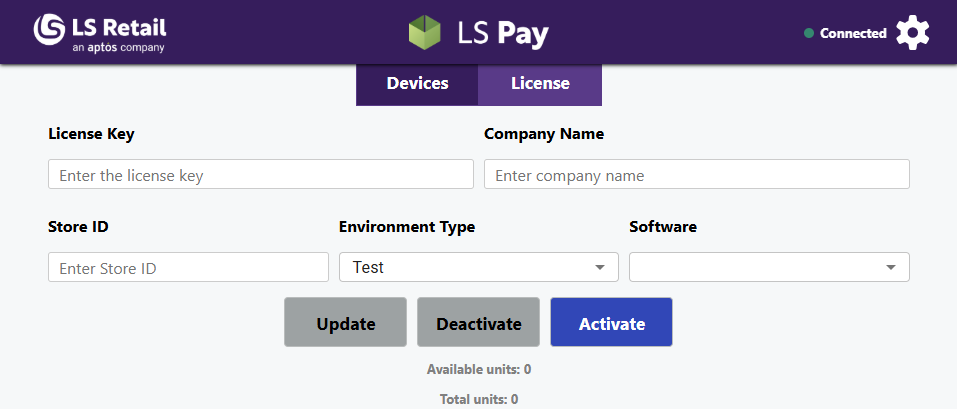
- Under the License tab, enter your license key and Company Name.
- License key is acquired from LS Retail's licensing team.
- Company Name should have the full name of your company. Ensure it is spelled correctly to help us easily identify your license to provide support when needed.
- Store ID should identify your store name. Ensure it is unique for example by including the store location if there are multiple store locations with the same name.
- Environment Type should be set to either "Test" or "Production," depending on your use case.
- Software should be set to the software where the LS Pay Service will be used. The current options are LS Pay for Business Central and EFT Extension for LS Pay.
- Finally, click Activate to activate your license.
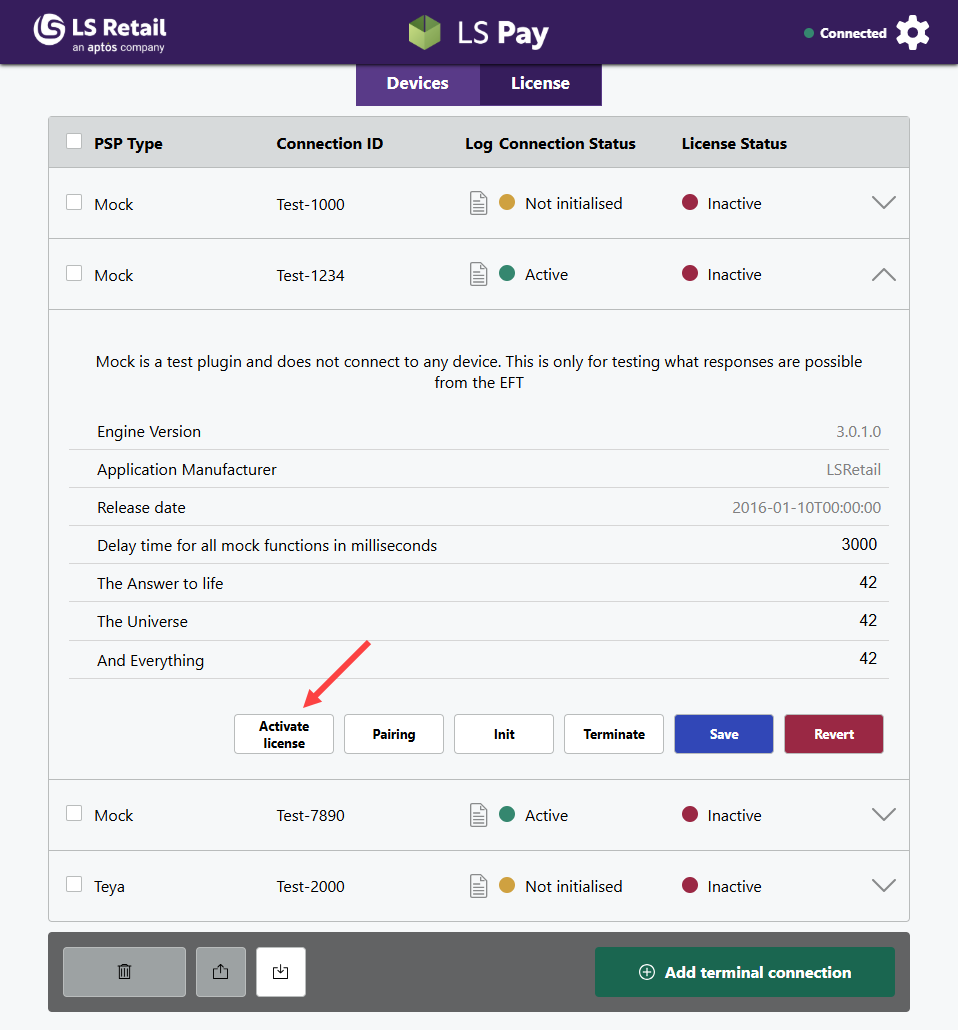
Before using the LS Pay service, make sure to activate the license for the devices you will be using.
To activate a device's license, expand the device's settings and click Activate license.
License deactivation
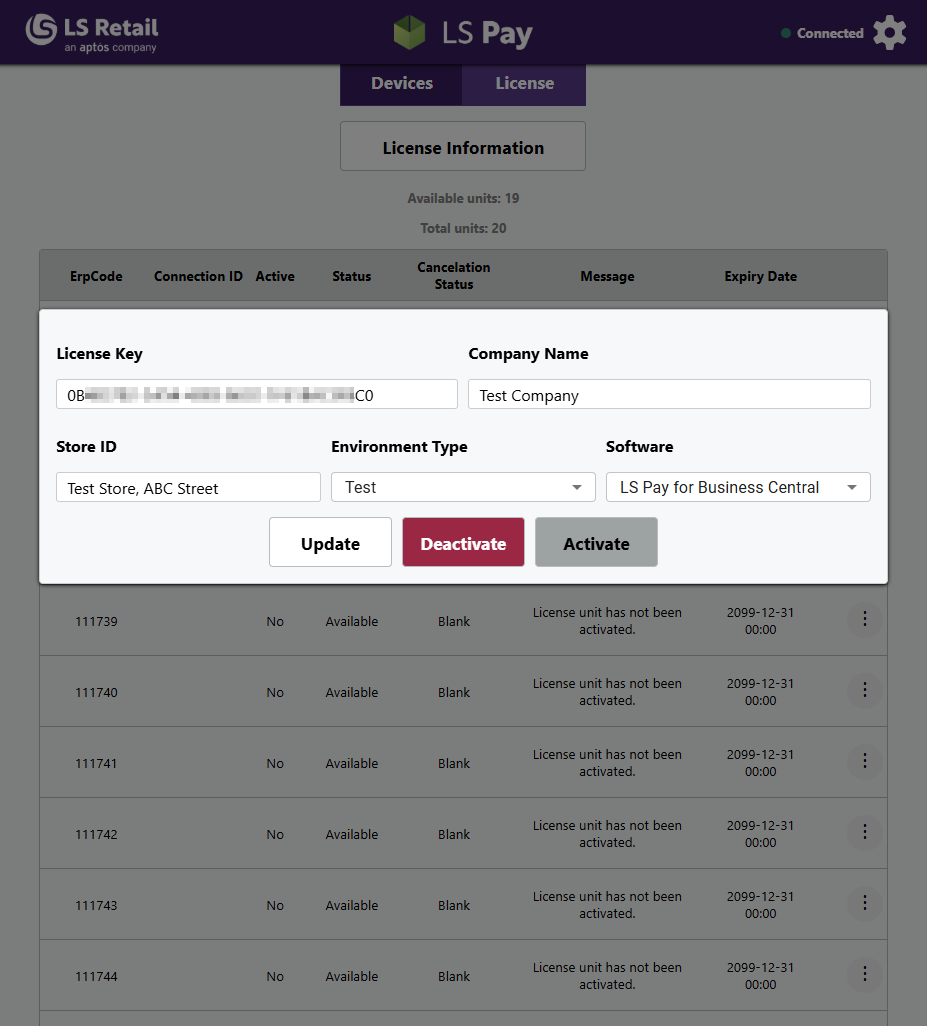
- To deactivate your license instance, open the license tab.
- Click License Information and Deactivate.
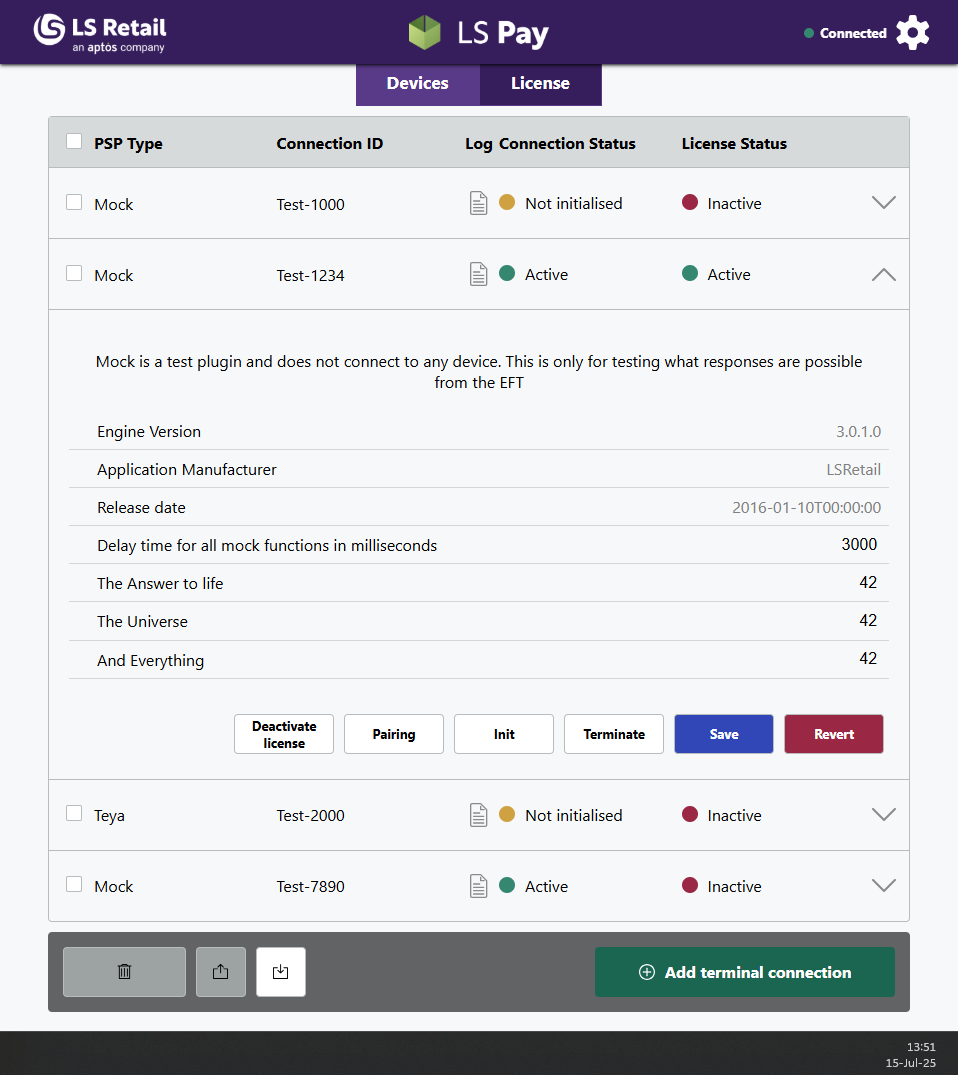
- To deactivate a device license, expand the device's settings.
- Click Deactivate license.
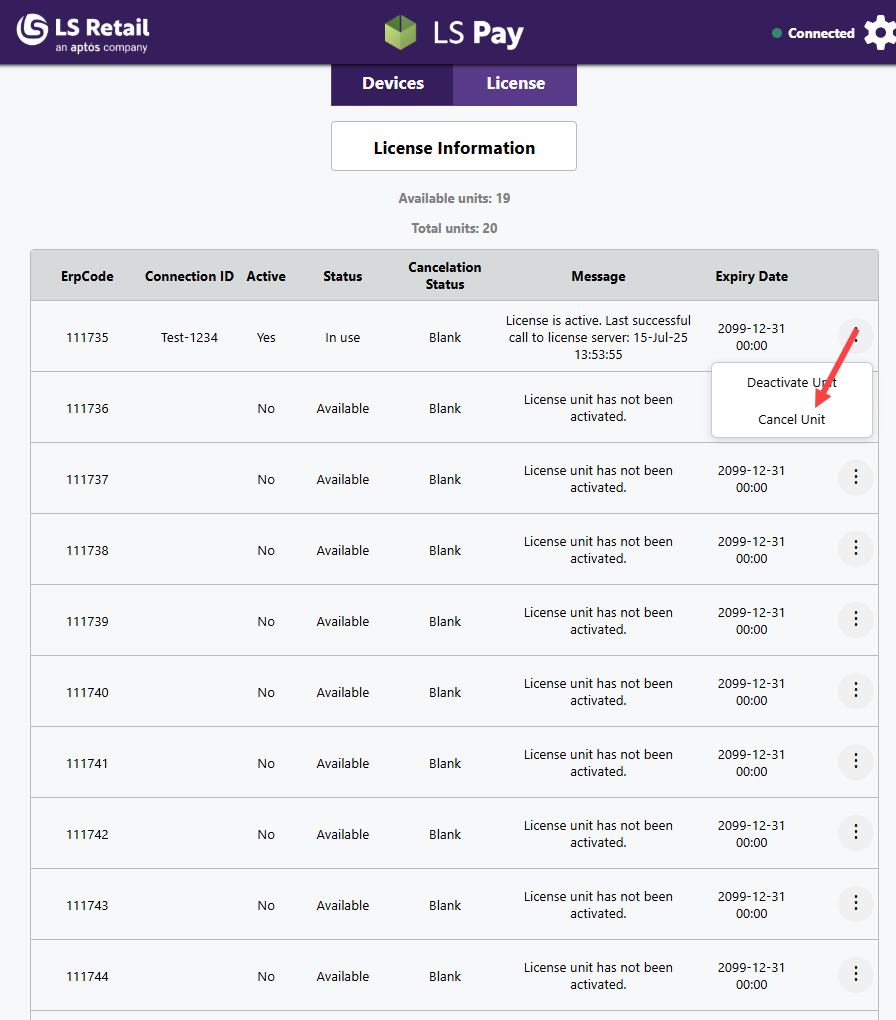
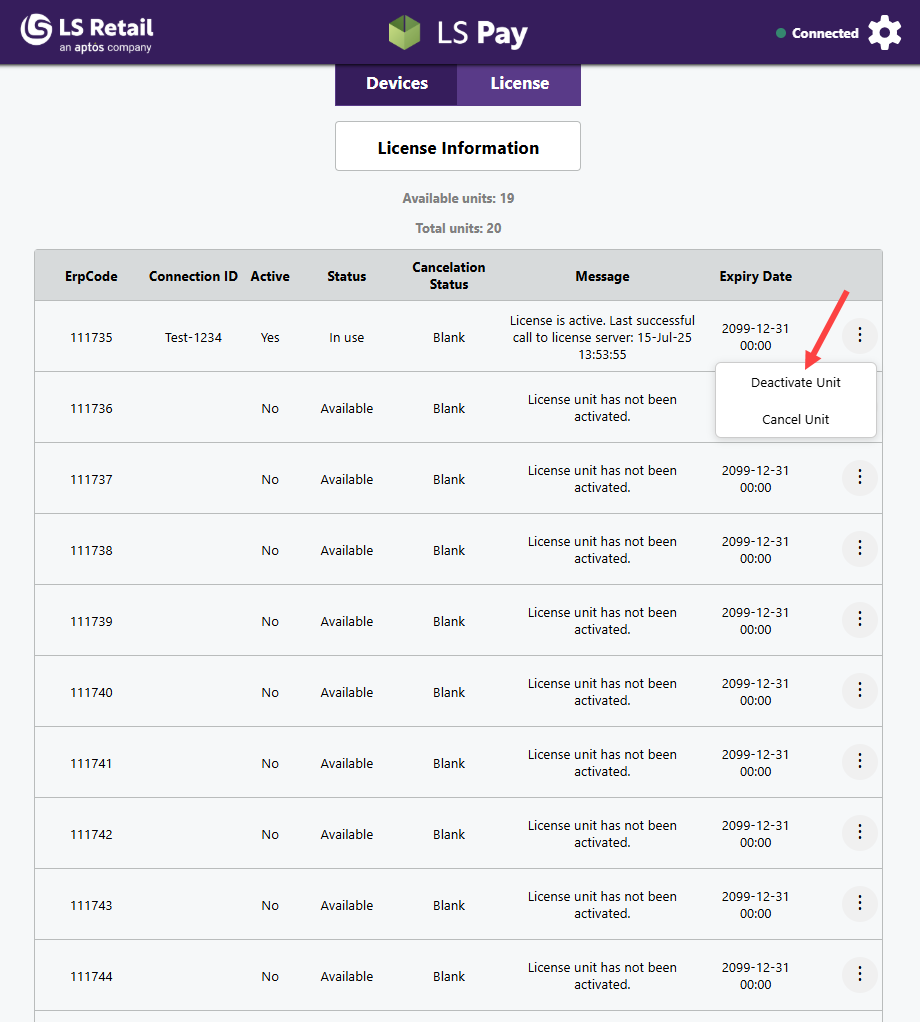
- Or deactivate from the license tab by clicking the three dots "..." and then Deactivate unit.
License cancellation
- To cancel a unit to remove it from the license, go to the license tab.
- Click the three dots "..." on the unit you want to cancel.
- Click Cancel unit.
Note: You will need to contact LS Retail's licensing team to complete the cancellation.